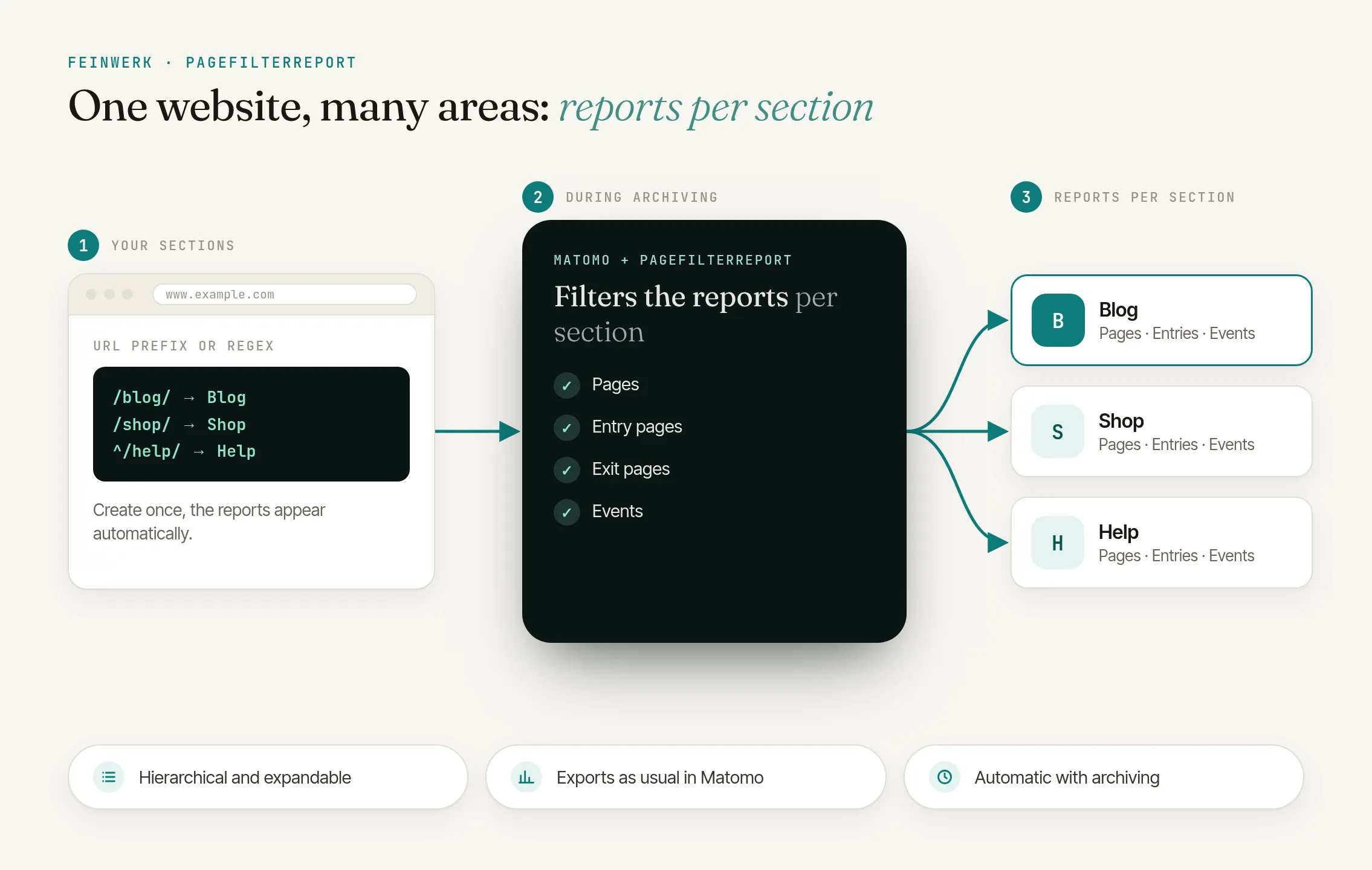
The problem: one pages report for the whole website
Under Behaviour → Pages, Matomo shows all pages in one report. That does not answer "How is our blog doing?", not even with a segment.
Matomo alone
- Blog, shop or help centre: you click through folders or use the search
- No bounce rate of all blog articles together at a glance
- A segment like "Page URL contains /blog/" takes every visit with at least one matching page, including its pages outside the blog
With PageFilterReport
- Every section has a dedicated entry in the reporting menu
- The figures for the whole section in one row
- Only the section's pages
The solution: Matomo reports filtered by URL, permanently
PageFilterReport creates fixed page groups in Matomo, called sections in the plugin. You describe a section once with URL patterns such as /blog/ and get a dedicated entry in the reporting menu. You can export the reports, flatten them and add them to email reports. Everyone with access to the website sees them.
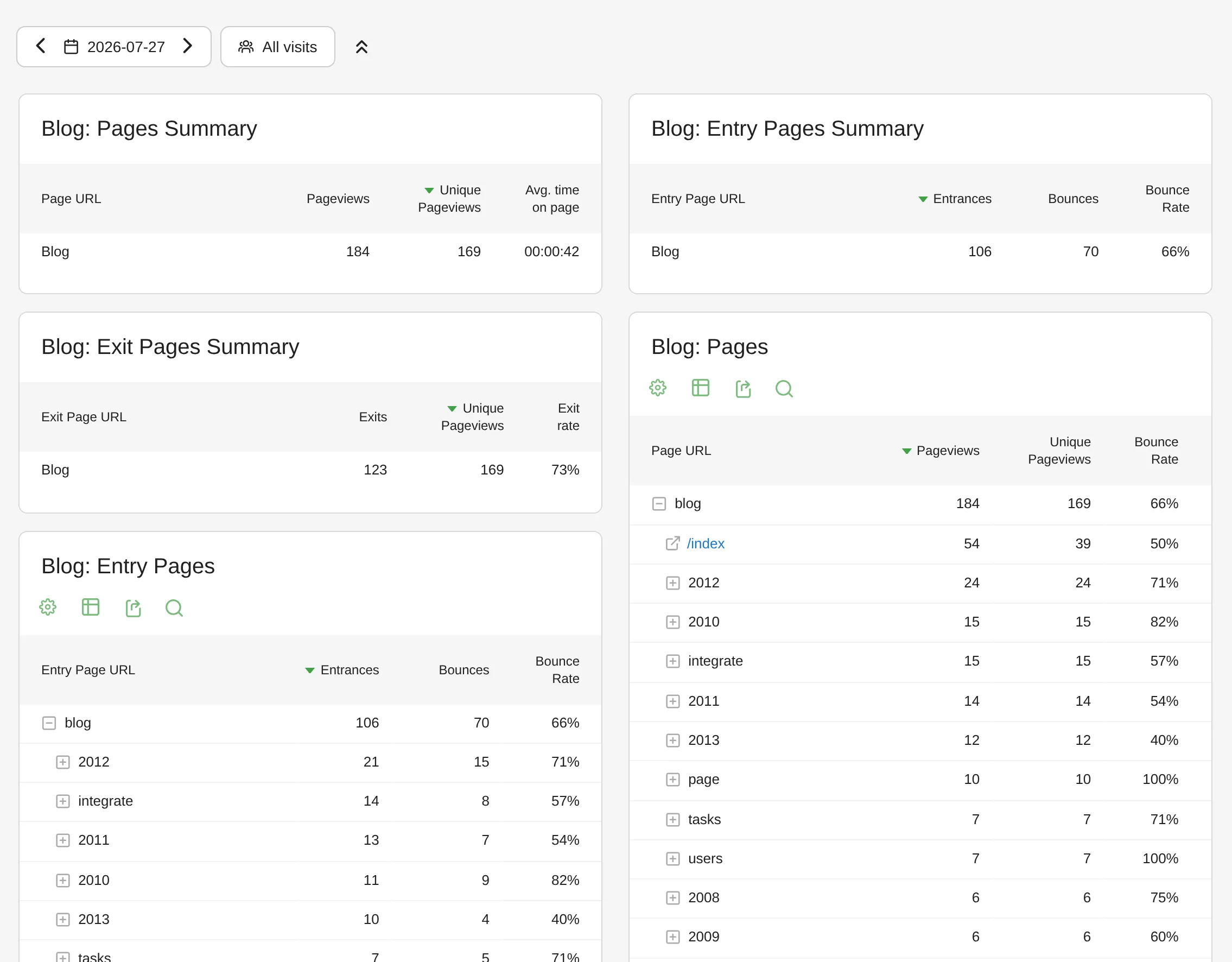
Summaries
The whole section's figures in one row for pages, entry pages and exit pages, such as pageviews, bounce rate and exit rate.
Pages, entry pages and exit pages
Hierarchical as usual, just limited to the section.
Events and channels
Events by category, action and name, plus the channel types of visits to the section.
How to analyze website sections in Matomo
- Install the plugin. Free, through the Feinwerk connector or as a ZIP file.
- Create a section. Under Administration → Websites → Manage Sections, enter a name and URL patterns, one per line. Optionally with a hostname or regular expressions.
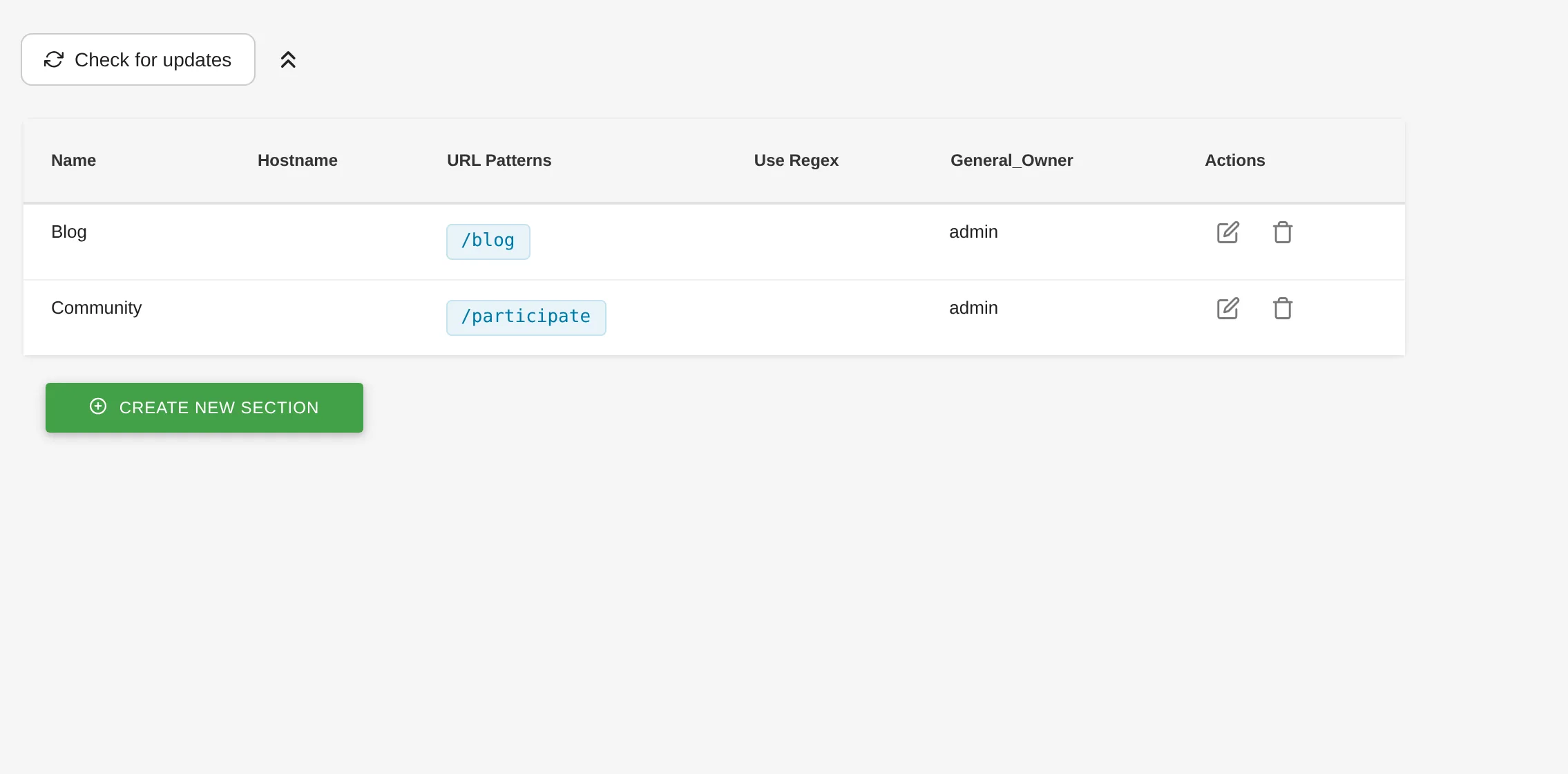
PageFilterReport: creating and managing sections - Wait for archiving. Matomo calculates the section reports during its next regular archiving run.
- Fill in the past. A command on the command line rebuilds the section reports for older periods.
- Use the reports. Open Sections in the reporting menu and pick your section.
The plugin documentation covers every step in detail.
Who it is for
Editorial and content teams
that evaluate their blog or guides separately.
Shop owners
who want to keep product and content pages apart.
Support and documentation teams
that check how the help centre is used and which downloads or videos start there.
Websites with several languages or hostnames
where one section spans several paths or domains.
Frequently asked questions
What is the difference from a segment?
A segment filters visits, a section filters pages. Section reports only contain pages whose path matches the pattern, and no pages outside the section. For the question of how a section itself is doing, the section is the more precise view.
Can I combine several paths into one section?
Yes. Put each pattern on its own line, for example /de/hilfe/, /en/help/ and /fr/aide/. The section then covers every page that matches one of the patterns.
Can I see data from the past?
Yes. A command on the command line rebuilds the section reports for any period you choose, as long as Matomo has already archived those periods.
Does it work with several domains in one website?
Yes. The Hostname field limits a section to one domain, such as shop.example.com, even if other domains of the website use the same paths.