


Email Reports Pro
Email Reports Pro turns your Matomo data into designed email reports: key figures with their trend, clear charts and tables that make even multi level reports readable. You put every report together from building blocks and see in the preview how the email arrives.
Plugin page · from €59/month Try the live demo ↗
Overview
Matomo's own email reports are quick to set up, but they look plain: short tables, simple graphics, little design. Multi level reports are hard to read in them, and Matomo alone decides how the email looks.
Email Reports Pro gives you the design back. You put every report together from building blocks: key figures with their trend, trend charts with a comparison line, tables with bars and sub rows, breakdowns as bars or donut, and the biggest changes, plus headings and your own text. The preview shows the email on desktop and on a phone the way your recipients see it.
Compare instead of just report
Every block compares with the previous period or with the same period last year. Changes are coloured by their meaning, and the biggest winners and losers of a report get their own block.
For management, marketing and shops
Templates for a management overview, marketing, content and e-commerce give you a finished report in seconds. Existing email reports from Matomo can be taken over as a starting point.
Sending, recipients and sharing
Reports go out daily, weekly, monthly or quarterly, to Matomo users and external addresses, with an own unsubscribe link for every recipient and a PDF if you like. Admins share reports in the team without revealing the recipients. A delivery log shows every send.
Privacy and transparency
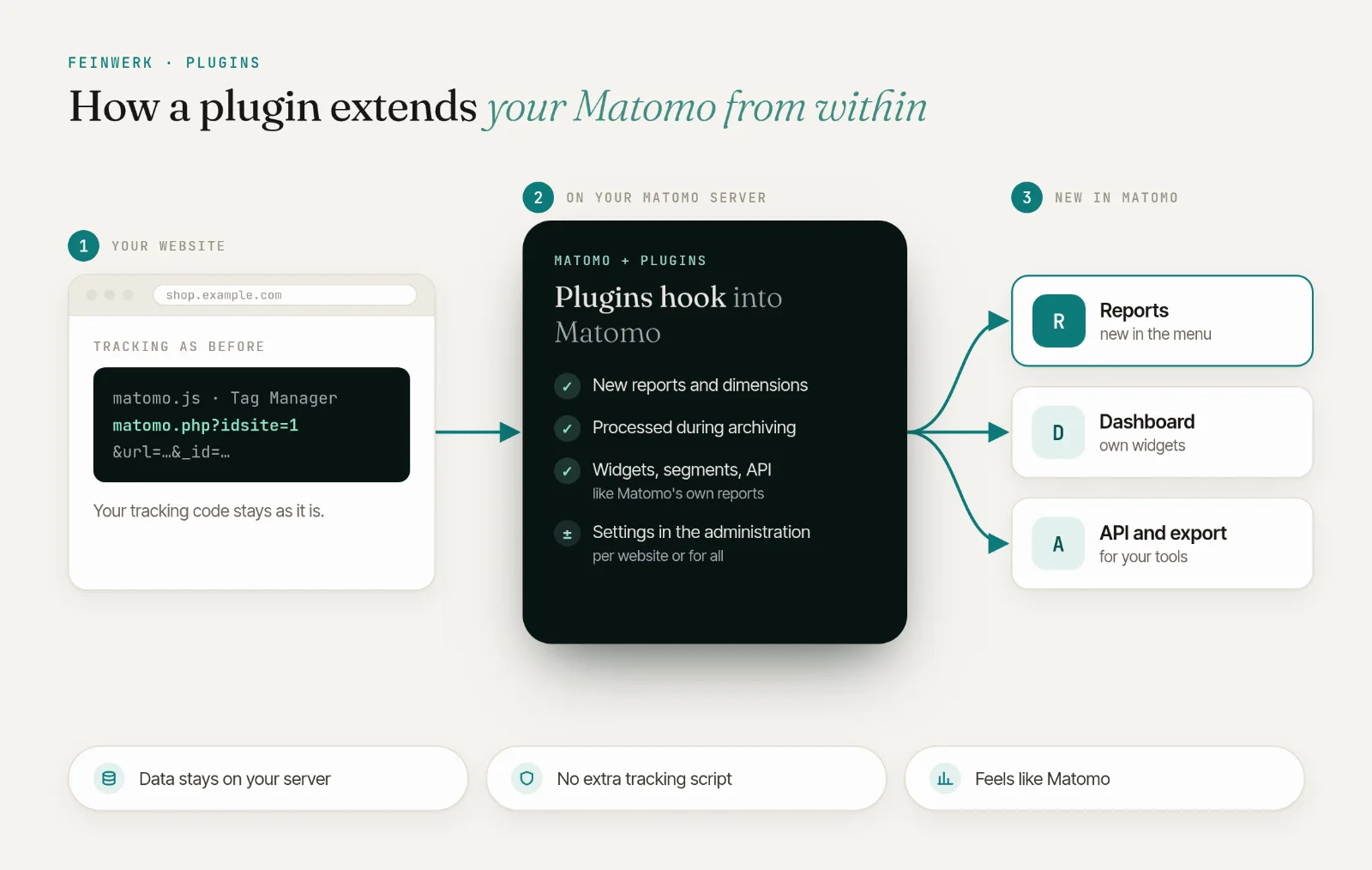
Reports are built entirely in your Matomo; report data and recipients leave your server only as the email to the recipients. The license check asks through the Feinwerk Marketplace Connector whether your instance has a license. Below the preview you can tell us whether it is shown correctly; only then your Matomo server sends your answer with the plugin and Matomo version, the browser and the language to Feinwerk. This feedback can be switched off.
Requirements
- Matomo 5.0 or newer, with PHP 8.1 or newer and the PHP extension GD (with FreeType)
- A working mail setup in Matomo and the cron job (
core:archive) or browser archiving - The Feinwerk Marketplace Connector, connected to your Feinwerk account, and a license for Email Reports Pro
Use cases
- Reports from building blocks: Key figures, trend chart, table, breakdown, biggest changes, heading and text: combine the blocks freely and in any order. Every block has its own Matomo report, its own metrics and, if you like, its own segment.
- Comparisons at a glance: Every key figure shows the change against the previous period or the same period last year, coloured by meaning: fewer bounces are green, fewer orders red.
- Multi level reports, readable at last: Tables show the top sub rows grouped under each row or one column per level, with bars, totals and an "Others" row. Conversions and revenue per goal can be columns next to them.
- Live preview with test send: The preview shows the email the way your recipients see it, on desktop and on a phone. One click sends the current state as a test to your own address.
- Sent on schedule: Daily, weekly, monthly or quarterly at the hour you choose in the website's timezone, to Matomo users and external addresses. Every recipient gets an own unsubscribe link, and a PDF version can be attached.
- Templates and takeover: Ready templates for a management overview, marketing, content and e-commerce get you started. Existing email reports from Matomo can be taken over as a starting point with one click.
- Sharing in the team: Admins of a website share reports with all users of the website or with selected users. They can look at the preview, send a test to themselves and copy the report, without seeing its recipients. Super users see and manage every report.
- Light and dark mode: In Matomo's light and dark mode, in English and German, with a delivery log per report.
Email Reports Pro turns your Matomo data into designed email reports. You put every report together from building blocks: key figures with their trend, trend charts, tables with bars and sub rows, breakdowns and the biggest changes, plus headings and your own text. Every block compares with the previous period or the previous year. The preview shows the email on desktop and on a phone the way your recipients see it, and Matomo sends the reports on your schedule.
Setup step by step
How to install plugins is described under Installing plugins. Email Reports Pro runs on Matomo 5.0 or newer with PHP 8.1 or newer. For the charts PHP needs the GD extension with FreeType, which almost every installation has. You also need the connector and a license. Every user with access to a website can create reports; choosing Matomo users as recipients and sharing reports is for admins of the website.
1. License and installation
Open Administration → Feinwerk Plugins → Discover. If the connector is not connected yet, click Connect with Feinwerk account. For Email Reports Pro buy the license with Buy a license or assign an existing license to this instance with Use an existing license. Then click Install: the connector installs and activates the plugin (technical name FeinwerkEmailReportsPro). Without a license the report page shows super users a notice.
For reports to go out, Matomo needs a working mail setup (Administration → System → General settings → Email server settings) and its scheduled tasks, so the cron job (core:archive) or browser archiving.
2. Create your first report
Choose the website at the top and open Personal → Email Reports Pro. Create report offers templates: Management overview, Marketing and acquisition, Content, E-commerce (for websites with a shop) or Empty report. If you already set up email reports in Matomo, take one of them over under Take over a Matomo email report as a starting point. Your old report keeps running until you switch it off in Matomo's own email reports (also under Personal).
3. Put the blocks together
On the Content tab you add blocks, order them with the arrows, copy or delete them. Clicking a block opens its settings.
- Key figures: up to eight tiles with value, change and, if you like, a small trend. Every tile can come from another Matomo report.
- Trend chart: one metric over the days or weeks of the period, if you like with the comparison period as a dashed line.
- Table: the rows of a report with up to eight columns, sorted by a metric, with bars, totals, an "Others" row and the change. For multi level reports (such as campaigns or search engines with keywords) show the sub rows grouped under each row or one column per level. Only rows containing and Hide rows containing filter by label.
- Breakdown: the shares of a metric as bars or a donut, for example by device type.
- Biggest changes: the rows of a report that gained or lost the most.
- Heading and Text: structure the report and explain what recipients see. Text supports
**bold**,*italic*, links as[text](https://…)and lists with-at the start of a line.
Every block can have its own title and its own segment. For reports with goal metrics, conversions, conversion rate and revenue per goal are available as metrics.
4. Schedule and period
On the Schedule and recipients tab you decide when the report goes out: daily, weekly on a weekday, monthly or quarterly on a day of the month (in shorter months on the last day), each at the chosen hour in the website's timezone. Quarterly reports go out in January, April, July and October. Only manually never sends automatically.
Data of sets the period. The period that just ended follows the schedule: yesterday for daily reports, last week for weekly, last month for monthly and last quarter for quarterly ones. Compare with chooses the previous period, the previous year or no comparison. The Segment of the whole report is chosen here as well.
5. Recipients
Send to me sends the report to your own address. Admins of the website can also choose Matomo users with access to the website. External addresses go under Further recipients, one per line. Every email carries an unsubscribe link for exactly this recipient. Addresses that unsubscribed are listed in the editor afterwards; they get the report again only when you add them back there on purpose.
6. Look and delivery
On the Look and delivery tab you choose the accent colour, the Matomo logo in the header, your own subject, a footer text, the language of the email and whether a PDF version is attached.
7. Preview and test send
On the right, the preview shows the email with your data, on desktop or as a phone. Sent on shows the report as it would have gone out on an earlier day; below it you see which period is shown. If that period has no data, the preview says so. Send test to me sends the current state, saved or not, to your own address.
Below the preview you can tell us whether it is shown correctly, and Support opens the Feinwerk contact form.
8. Sharing
Admins of a website share a report on the Sharing tab with all users of the website or with selected users. They see it in their list, can look at the preview, send a test to themselves and copy the report to their own reports. They cannot change it and do not see its recipients. Segments of the owner that they cannot use are left out of their copy. Super users see and manage all reports.
9. Save and send
Save schedules the report. The list shows schedule, recipients, creator, the last and the next send. Send now sends a saved report to all its recipients right away. The delivery log below the editor lists every send with period, recipients and result; it keeps the last 50 sends.
Examples
Weekly report for the shop: E-commerce template, weekly on Mondays at 8, compared with the week before. Key figures for visits, orders and revenue, a table of channels with revenue per channel and the biggest changes of the products.
Monthly report for the agency: Marketing and acquisition template, monthly on the first day, compared with the same month last year. Campaigns grouped with their main sources, plus the search engines; the agency is an external address among the recipients.
Quarterly report for the management: Management overview template, quarterly on the first day, with a PDF attached. A few key figures, a trend chart over the quarter and a short assessment as text.
Good to know
- Reports go out with Matomo's scheduled tasks, which run every hour. If the cron job does not run, no report goes out either.
- If a send fails, Email Reports Pro tries twice more, an hour apart. The list shows the status, the delivery log the reason. A period never goes out twice.
- If a report, metric, goal or segment disappears later (for example because a plugin was deactivated or a goal deleted), the email shows a notice in its place instead of empty fields. A deleted segment of the whole report stops the send; the editor shows it as missing.
- Matomo users get a report only as long as they have access to the website.
- When a report, a user or a website is deleted, Email Reports Pro deletes the related reports with their recipient addresses and delivery log. A recipient you remove from a report leaves no stored address behind.
Privacy and transparency
Reports are built entirely in your Matomo. Report data and recipients leave your server only as the email to the recipients. The license check asks through the connector whether your instance has a license.
Below the preview there is the question whether it is shown correctly. Only when you click there, your Matomo server sends your answer with the plugin and Matomo version, the browser and the interface language to Feinwerk, no report data and nothing about you or your website. You can switch it off in config/config.ini.php:
[FeinwerkEmailReportsPro]
feedback = 0
Technical reference
| Property | Value |
|---|---|
| Technical name | FeinwerkEmailReportsPro |
| Current version | 1.0.1 |
| Matomo | ≥ 5.0.0, < 7.0.0-b1 |
| PHP | ≥ 8.1.0 |
| License | paid |
| Database changes | none in the current version |
FAQ
Does Email Reports Pro replace Matomo's email reports?
It comes in addition; your existing reports keep running. You take an existing report over as a template and switch the old one off yourself.
Which Matomo versions are supported?
Matomo 5.0 or newer, with PHP 8.1 or newer. For the charts PHP needs the GD extension with FreeType, which almost every installation has.
How are the emails sent?
Through your Matomo's mail setup, like Matomo's own reports. The schedule is run by Matomo's scheduled tasks, so the cron job (`core:archive`) or browser archiving.
Who sees which reports?
Every user sees their own reports and the ones shared with them. Super users see and manage all. Others can look at, test and copy shared reports, but not change them.
What happens when a recipient unsubscribes?
They get no more emails from this report. When editing, you see the addresses that unsubscribed and can add them again on purpose. Deleting a report leaves no addresses behind.
Can I use segments?
Yes, for the whole report or for single blocks. You can pick the segments the owner of the report may see.
Are reports available as PDF?
Yes. If you like, Email Reports Pro attaches a PDF version to every email.
Which data goes to Feinwerk?
The license check asks through the Feinwerk Marketplace Connector whether your instance has a license. Below the preview you can tell us whether it is shown correctly. Only when you click there, your Matomo server sends your answer with the plugin and Matomo version, the browser and the interface language to Feinwerk. Report data, recipients or visitor data never leave your Matomo. The feedback can be switched off in the configuration.